
Features
Mouse, keyboard, Dock, switcher, buttons. Every Mac, as one.
One mouse and keyboard across every Mac on your desk, one Dock and one app switcher holding all of them, and every mouse button given a job. Here is each piece, moving.
The basics
Push the cursor off the edge. Type, copy, drag.
One mouse and keyboard for every Mac on your desk. Your clipboard comes along, and files and folders drag straight from one desktop to the other.
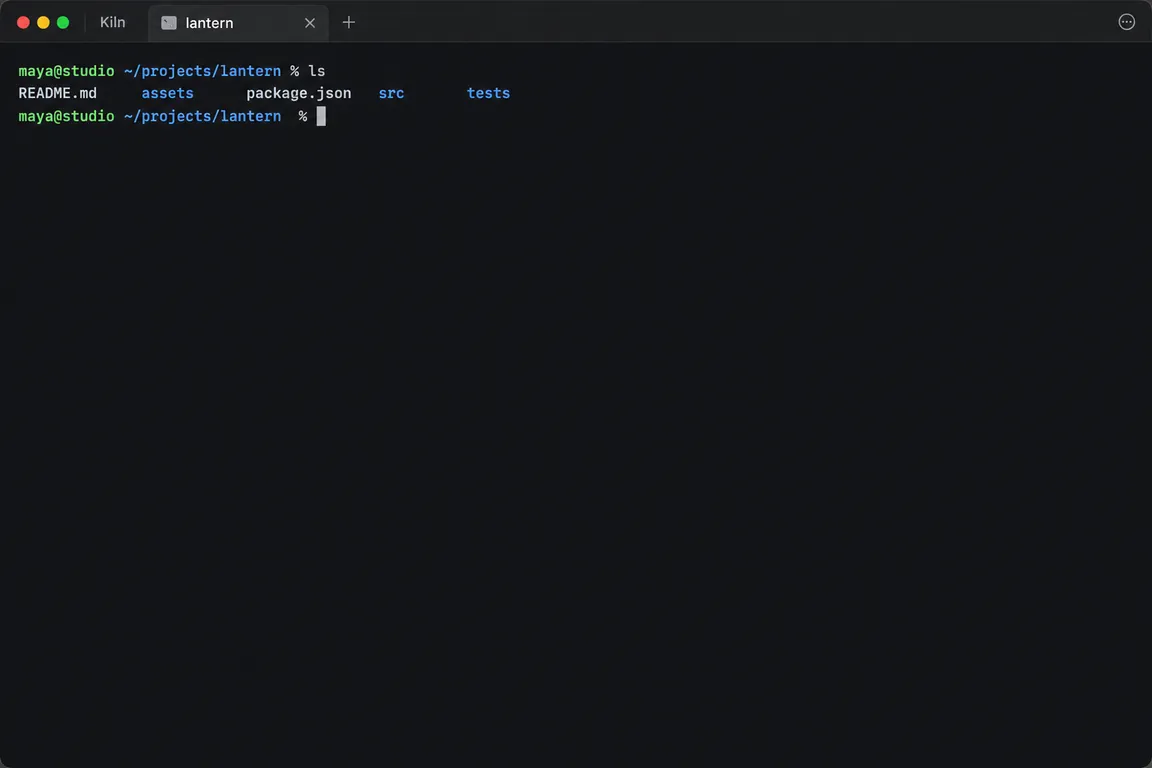
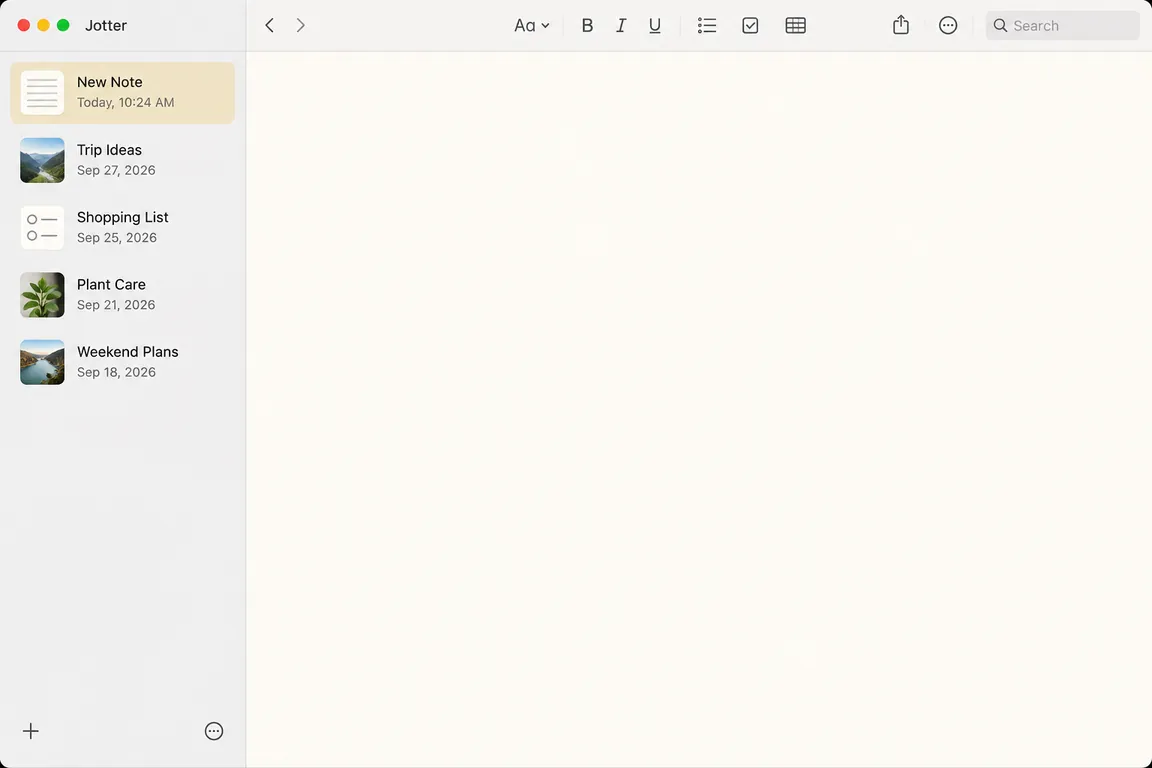







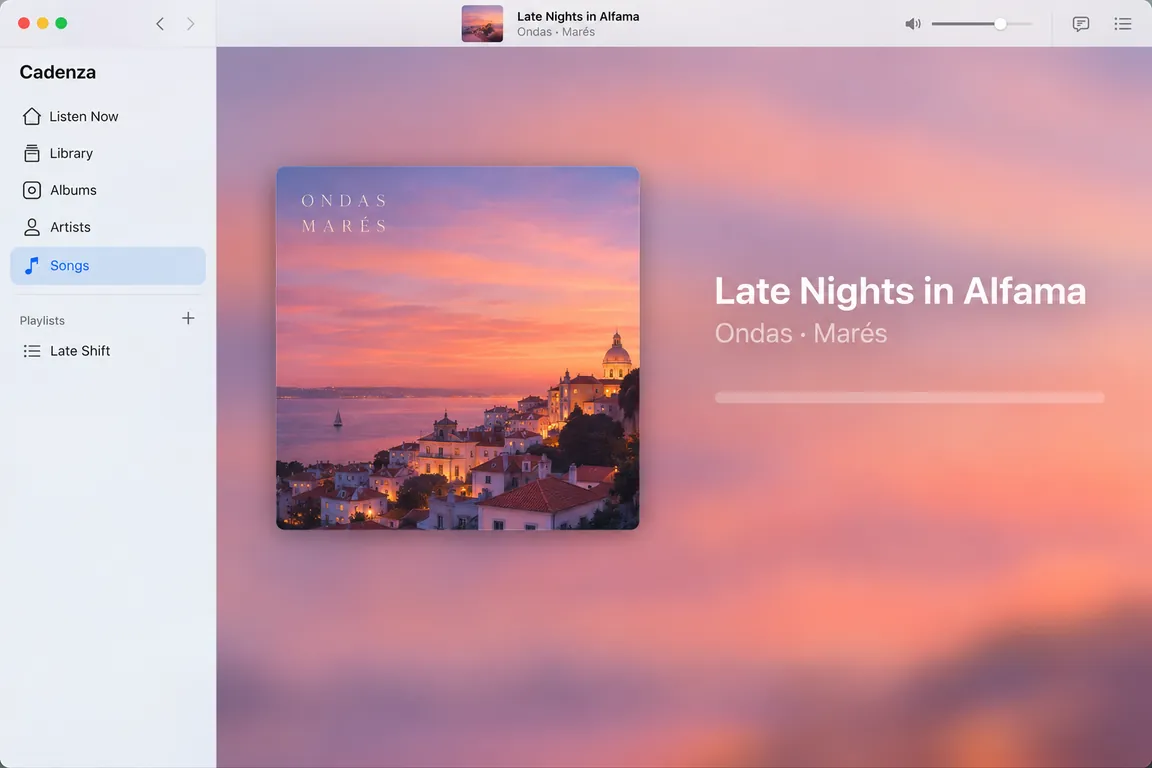
One Dock for every MacNot in macOS
Click an app in the iMac's Dock and it opens on the Mac it lives on, here the MacBook and the Mac mini.
Command-Tab reaches every MacNot in macOS
Drawn here as the Arc, one of eight switcher shapes. macOS only has the row.
Play goes where the music is
The play key on the iMac plays the music on the Mac mini.
Minimize with SwoopNot in macOS
A minimize effect of BezelMouse's own. macOS has Genie and Scale.
Drag across
Drag a browser tab to your other Mac
Pull a tab out of Safari or Chrome, push it past the edge of the screen, and let go on the other Mac. Drop it on a browser window there and it opens as a new tab; drop it on the desktop and it opens in your browser, on the same page. Links and selected text cross the same way, and a link dropped on nothing simply opens in the browser.
- Safari and Chrome tabs
- Links, selected text, and small pictures
- Files and folders, with progress shown in Finder as they arrive




The Dock
One Dock, holding every Mac's apps
Your Macs stop having a Dock each. One Dock sits on the Mac in front of you and holds them all, each Mac's apps behind its own tint, in the order the screens stand. Click an app on another Mac and it opens there, and the pointer goes with it. It replaces the macOS Dock rather than sitting beside it, and it can be a Mac Dock or a Windows taskbar.
- Every Mac's apps in one Dock, tinted by the Mac they are on
- A Mac Dock, or a Windows 10 or 11 taskbar
- Windows minimize into it and come back the way they left
- Badges on the icons: unread mail and messages, from every Mac
The app switcher
Command-Tab reaches every Mac
The switcher stops being one Mac's. Hold Command and Tab and it opens on the Mac you are looking at, holding every connected Mac's apps in one row, each tinted by the Mac it is on and ordered by how recently you used it. Land on an app belonging to another Mac and it comes forward there, with the pointer.
- Every Mac's apps in one row, not just this Mac's
- Ordered by how recently you used each one, across Macs
- Picking one sends the pointer with it
Switcher shapes
Eight ways to draw it
The switcher can be a row, a dial, a hand of cards, Cover Flow, and more. Try each one here: this is how it looks and moves on your Mac.
A dial that turns. Go past the last app and it keeps spinning round to the first.
Click an app or use the arrow keys. Rest the pointer near either end to turn the dial.
Mouse button remapping
The buttons macOS never gave a job to
Most mice have more buttons than macOS knows what to do with. Give each one something to do: a click, a media key, Mission Control, a keyboard shortcut, or jumping to the next Mac. What it does happens on whichever Mac the pointer is on, not the one the mouse is plugged into. Buttons a mouse hides from macOS, like the side keys on an Elecom trackball, work too.
- Any button, set to a click, a media key, a Mac action or a shortcut
- It acts on the Mac the pointer is on
- Works with buttons macOS cannot see on its own
Trackpad gestures
Your trackpad, their screen
Gestures follow the pointer. Swipe up for Mission Control, swipe between Spaces, pinch a photo, or swipe back a page, and it happens on the Mac you're controlling, not the one your trackpad is attached to.
- Mission Control, App Exposé, Launchpad and Spaces
- Pinch to zoom, rotate, and smart zoom
- Swipe between pages and full-screen apps
Pointer styles
A pointer that looks like yours
Give the pointer a look of its own: a comet's tail, a neon glow, fire, hearts, snow, or a rubber duck paddling behind it. Pick a color, a size and how much of the effect you want, and it follows you across every Mac. It still turns into an I-beam over text and a hand over links, whatever the style.
- Fifteen styles, from Glass and Comet to Rubber ducky
- Your own colors for the pointer and for its tail, glow or particles
- Particles burst wherever you click, if you like that sort of thing
Jump
Straight to any Mac, no edge required
Give every Mac a number in the arrangement, then press Control-Option and that number to land in the middle of its screen. Arrow keys jump to the Mac in that direction, and the menu bar lists every connected Mac as a shortcut. A soft ring of light shows where you arrived.
- Control-Option-1 to 9, or Control-Option and an arrow
- Pick your own modifiers, or turn the shortcuts off
- Keep the pointer on one Mac with Control-Option-L when you need it to stay put
Media keys
Play, pause and volume go where the music is
Press play on the Mac you're typing on and the Mac that is actually playing responds, whichever one your pointer happens to be on. Skip and volume keys go the same way. When nothing is playing, play resumes on the Mac that stopped last.
- Works with Music, Spotify, browsers, anything that plays sound
- A small notice under the menu bar says where the key went
- Switch it off and the keys stay on the Mac they were pressed on
Clipboard
Copied files move when you paste, not before
Copy a folder on one Mac and cross over. Nothing is sent yet. Press Command-V on the other Mac and the files come across right then, with progress, and paste when they arrive. Copy something else there first and Command-V is that Mac's own again.
- Text, formatted text, links and pictures sync as you cross
- Files and folders up to 8 GB, sent only when pasted
- Passwords copied from a password manager are never shared
Stay awake
The other Mac is there when you reach for it
A Mac that dozes off drops off the network, and the pointer has nowhere to go. While you work on one Mac, BezelMouse keeps the others awake and connected. Stop for a couple of minutes and they sleep on their usual schedule.
- Choose whether their screens stay on or may turn off
- Off, if you would rather they sleep as normal
- Reconnects by itself after a Mac wakes
And the rest
The small things that make it feel like one Mac
- Any Mac controls any other
- No main computer. Whichever mouse you pick up wins.
- Any number of Macs
- Two on a desk or six in a studio. Every Mac can reach every other.
- Multiple monitors
- Every display on every Mac, laid out in a visual editor.
- Choose where the pointer enters
- Slide a Mac up or down in the arrangement and the crossing point follows.
- Smooth crossing
- The pointer covers the same distance on a 27-inch 5K display and a 13-inch laptop.
- Arrival animation
- A glow, ripple, pulse, beam or confetti where the pointer lands. Or nothing.
- Dim the Macs you're not using
- A tint you choose, so it's obvious where your keyboard is.
- Hide the idle pointer
- One pointer on your desk. Move a Mac's own mouse and its pointer comes back.
- Your own shortcuts
- Record the shortcut that takes back control, and the ones that jump and lock.
- Modifier keys that behave
- Command, Option, Control and Shift work across Macs, including held combinations.
- Opens at login
- Waits in the menu bar. No Dock icon unless you open the window.
- Wallpaper in the layout
- The arrangement editor shows each Mac with its real wallpaper, so you know which is which.